
Forminator Forms is a versatile and user-friendly WordPress form builder that lets you create interactive forms, polls, and quizzes with ease. GoDAM Forminator Forms integration allows you to capture leads directly from videos when added as an interactive video layer. It’s a powerful way to make your videos more engaging and interactive, helping you collect user responses effortlessly. All form submissions are securely stored and accessible from the Forminator submissions section in your WordPress dashboard.
How to integrate the Forminator Forms inside a video at a specific timestamp
Requirements
To follow this tutorial, you will need:
Step 1: Create a Forminator Form
Start by setting up a new form in your WordPress Forminator forms dashboard. Define the basic structure and fields you need, such as name, email, or any other required information. Skip this step if you’re using an existing form.

Step 2: Open the video editor interface
Visit the WordPress media library and find the video on which you want to integrate the form. Click on the video and then the Edit Video button. It will open up a new screen where you can edit a specific video and insert the form at a specific timestamp.
OR
Visit GoDAM Video Editor page and select the video on which you want to insert the Forminator form layer. It will open up a new screen where you can edit a specific video and insert the form at a specific timestamp.

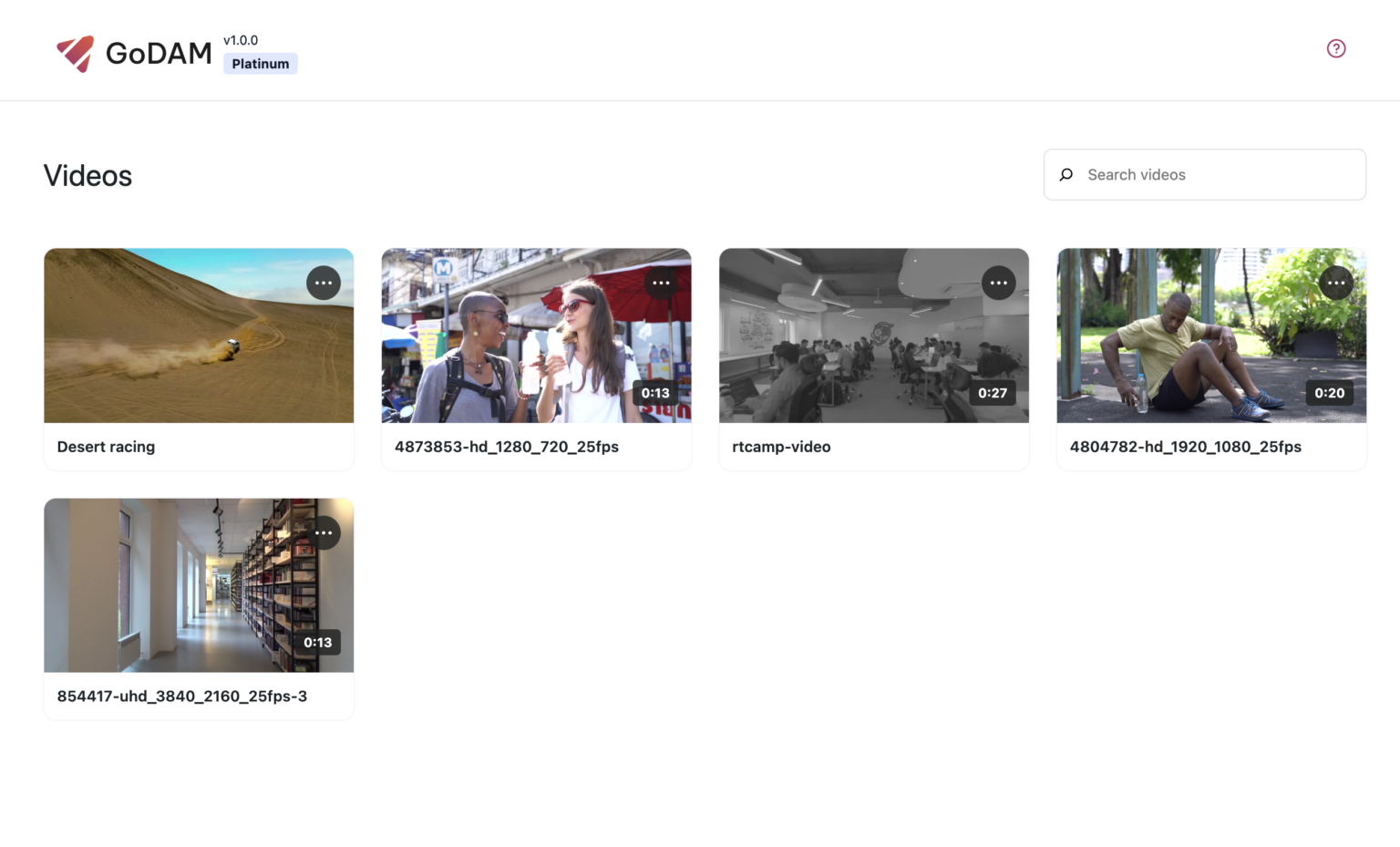

Step 3: Insert the form layer inside a video and save
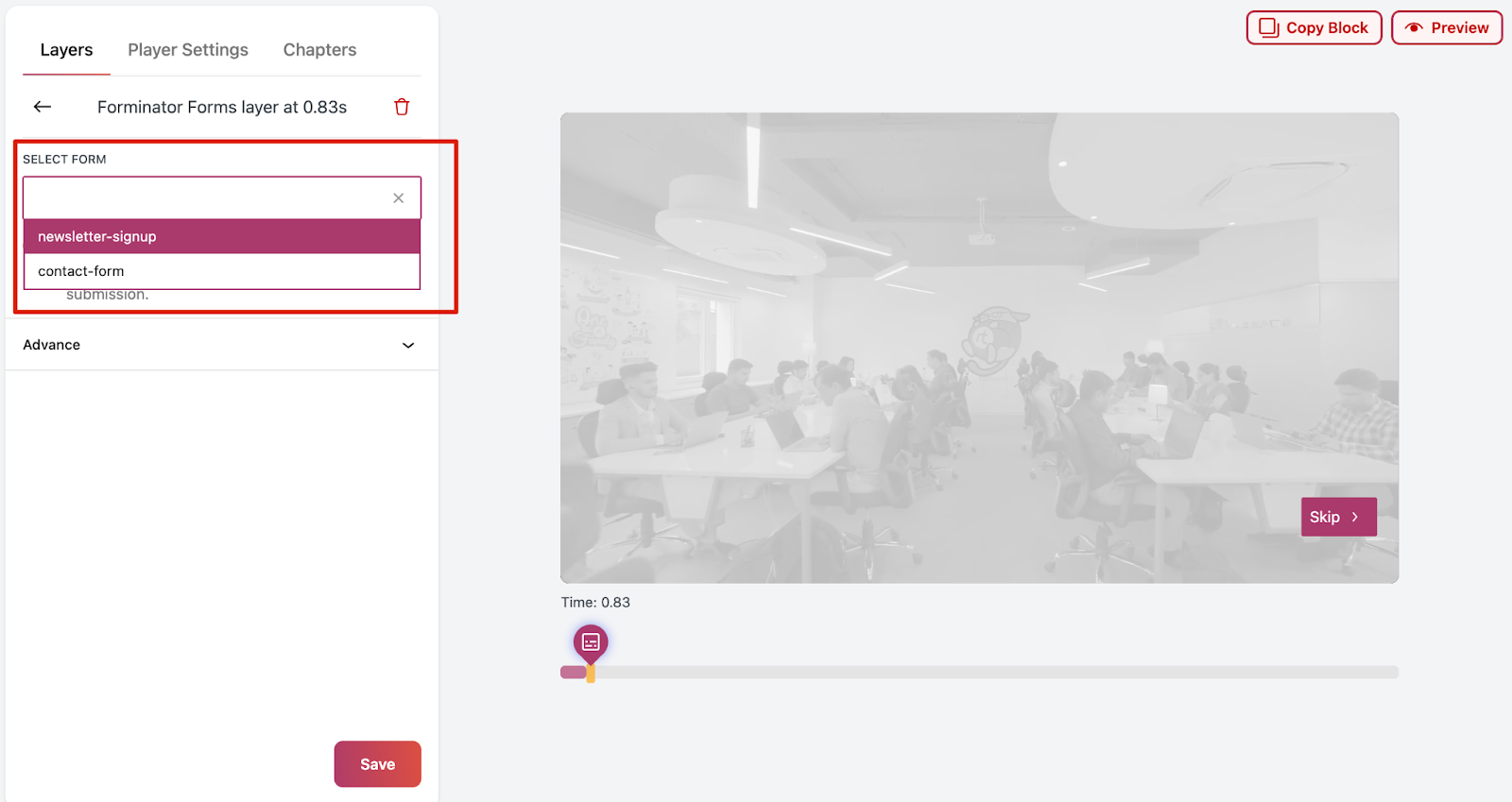
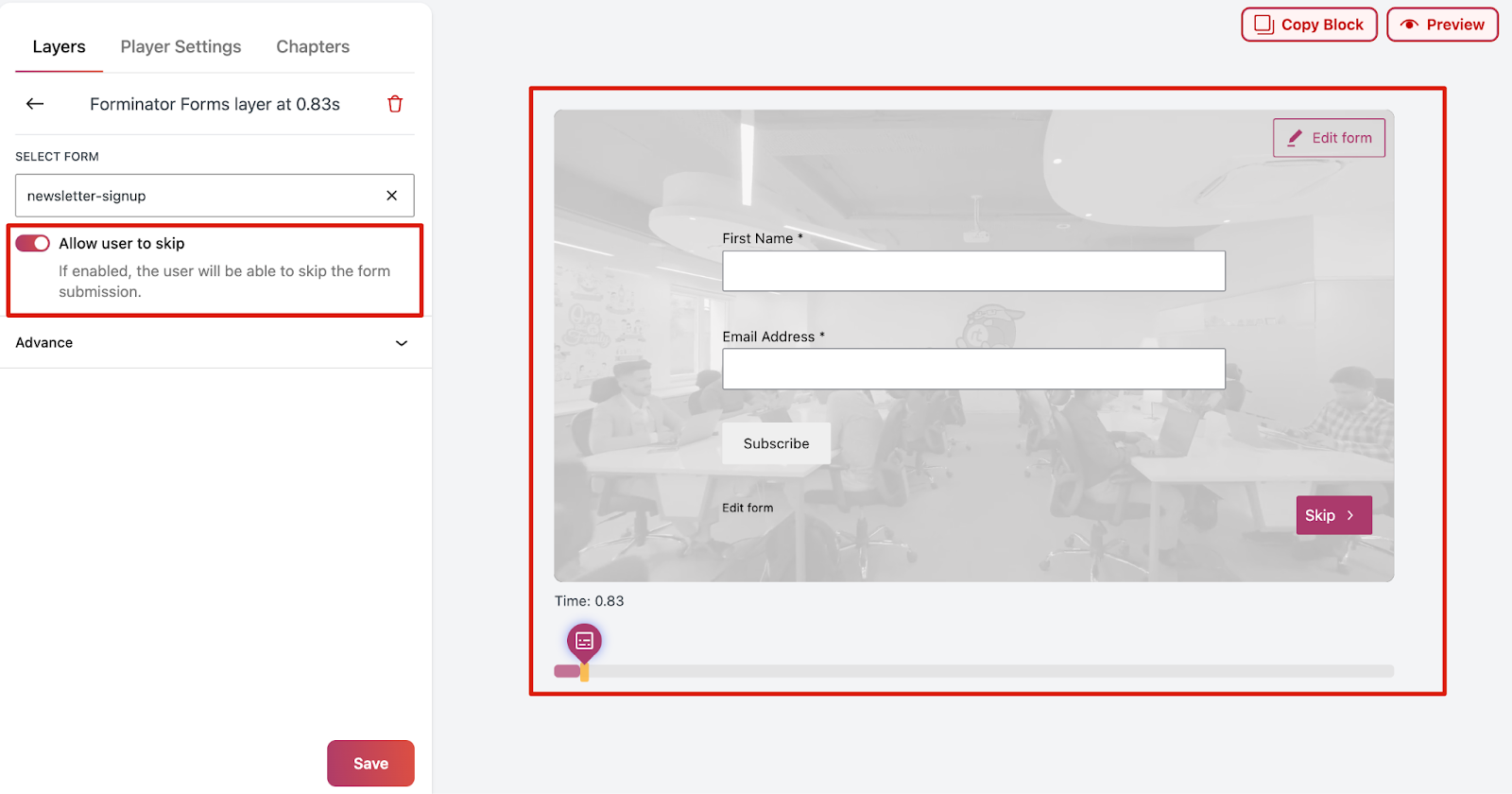
Step 4: Add a GoDAM video on a post or a page
Visit any post or page where you want to insert the video in which you added the Forminator form. You can use the “GoDAM video” block or [godam_video id=”1”] shortcode to insert a video inside a post or page.
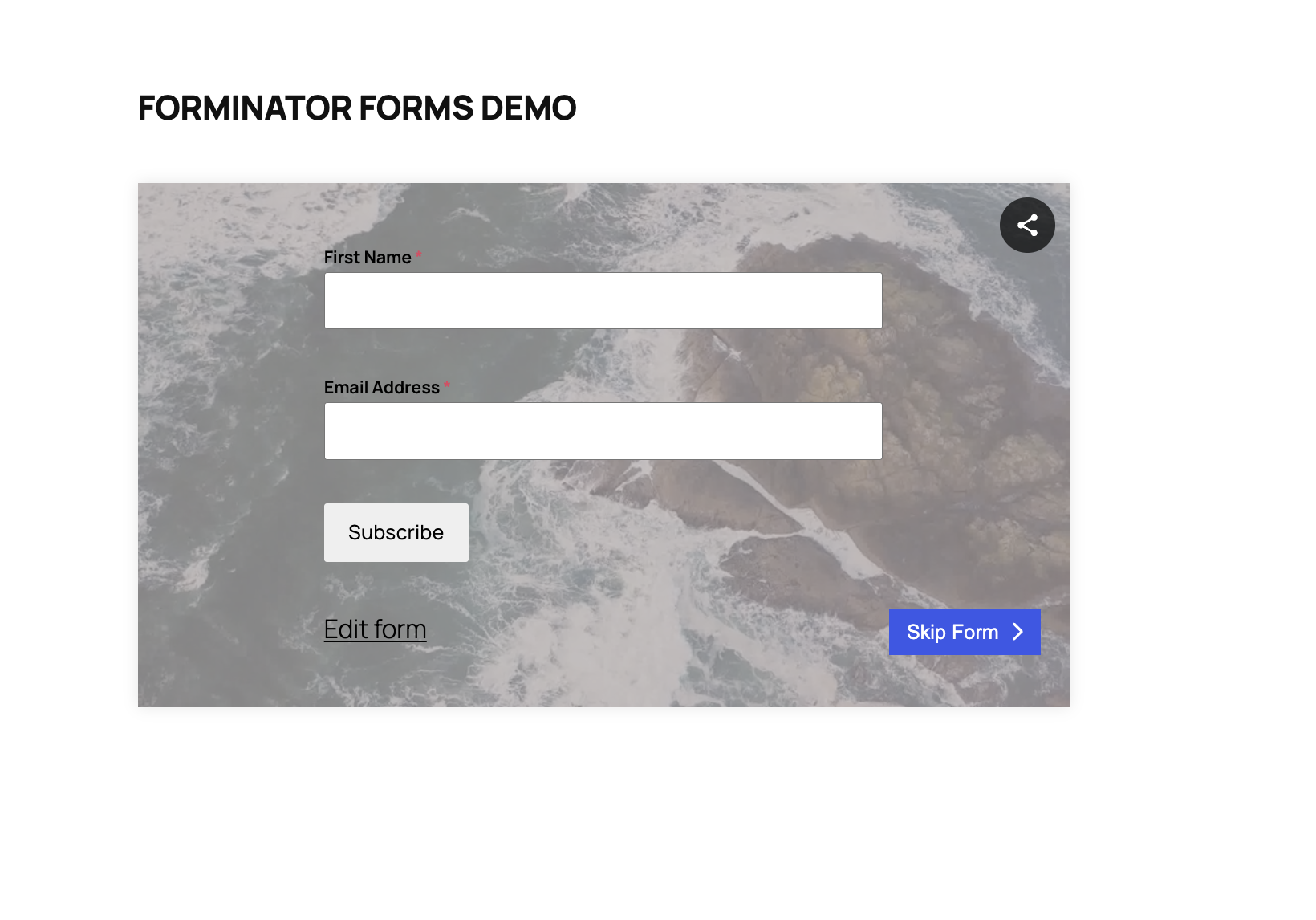
To view user entries, navigate to the Forminator dashboard in your WordPress admin panel, then go to Submissions and select the form whose entries you want to view.
