
LifterLMS is a feature-rich learning management system for WordPress, designed to help you create, sell, and manage online courses with ease. It includes tools like quizzes, assignments, memberships, and certificates, giving you everything needed to run a complete eLearning platform. GoDAM LifterLMS integration provides course creators to host their videos on the GoDAM cloud storage, serve them using a global CDN and add advanced video capabilities. With features like video completion tracking, auto-play, and resume playback, you can deliver a more interactive and engaging learning experience for your students.
LifterLMS Advanced Video
To use GoDAM with LifterLMS, you will need the LifterLMS Advanced Video add-on, it gives course creators more control over how learners interact with lesson videos. Some of its key features include:
- Require Video Completion: Prevents learners from marking a lesson complete until the full video is watched.
- Auto-Advance: Moves learners to the next lesson automatically after a set countdown.
- Auto-Play Next Lesson: Starts the next lesson’s video automatically after the current one finishes.
- Resume Playback: Learners can continue from where they left off if they return later.
By integrating GoDAM, you can apply these features to your videos, ensuring a smooth, branded, and fully interactive learning flow for your students.
Enable Advanced Videos
Before you begin:
- Make sure you have Lifter LMS, Lifter LMS Advanced Video, and GoDAM installed and activated.
- Also, check out this guide on how to add a GoDAM video to Lifter LMS courses.
Enable Video Integration
1. Go to Dashboard > LifterLMS > Settings and click the Integrations tab. Here, you’ll see video integration options for Vimeo, Wistia, and YouTube.
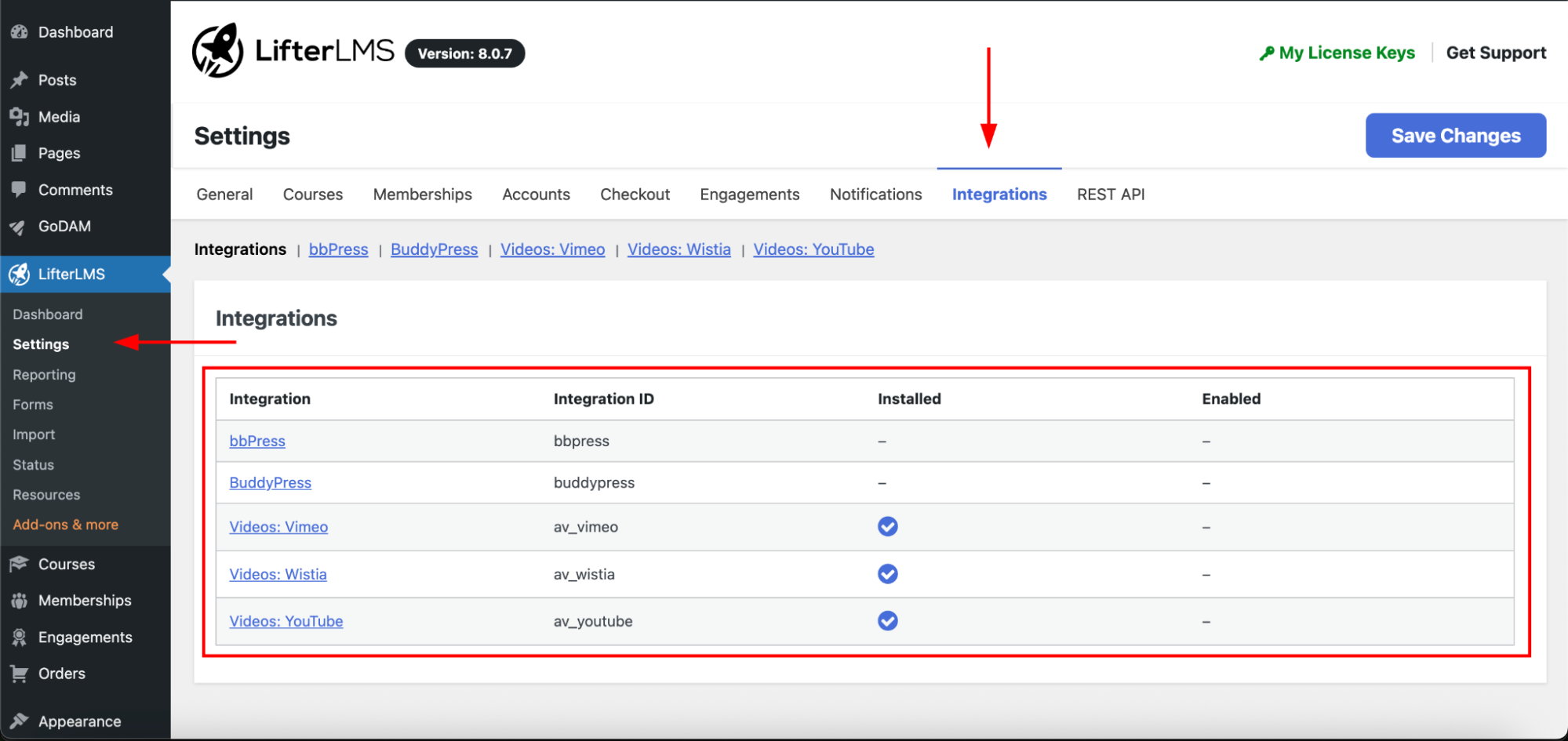
2. Click on one of the video platforms to open its settings, here we are using YouTube as an example.
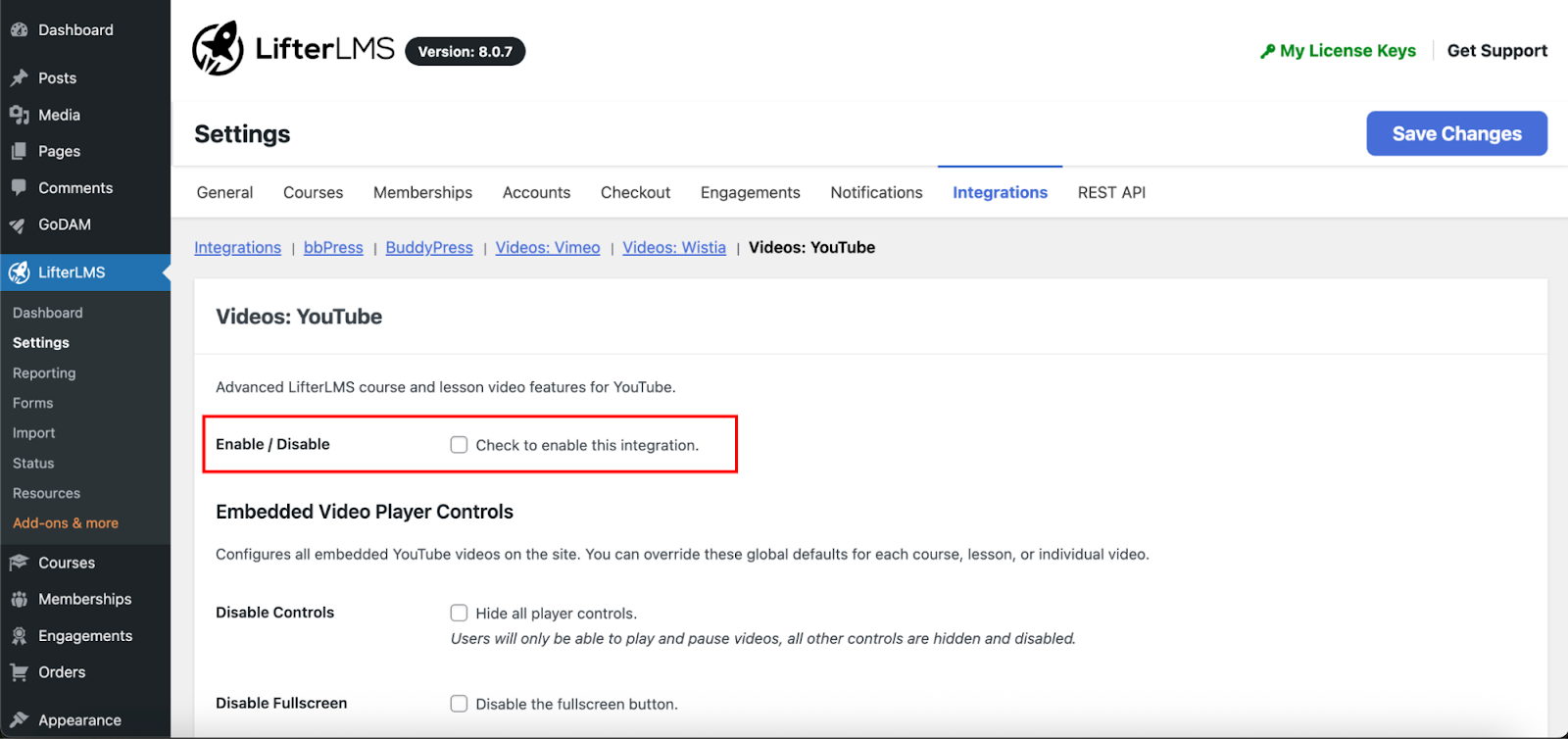
3. Check the Enable/Disable box to activate the integration.
4. Click Save Changes.
Note: You must enable at least one video integration option for Advanced Video features to work with GoDAM.
Configure Video Progression Settings
1. Go to Dashboard > LifterLMS > Settings and select the Courses tab.

Scroll to the Video Progression Settings section. You’ll see options such as:
- Require Video Completion: Learners can only click “Mark Complete” after watching the entire video.
- Auto-Advance: Automatically move learners to the next lesson after a set countdown.
- You can set the countdown duration.
- Optionally, enable Auto-Play Next Lesson Video.
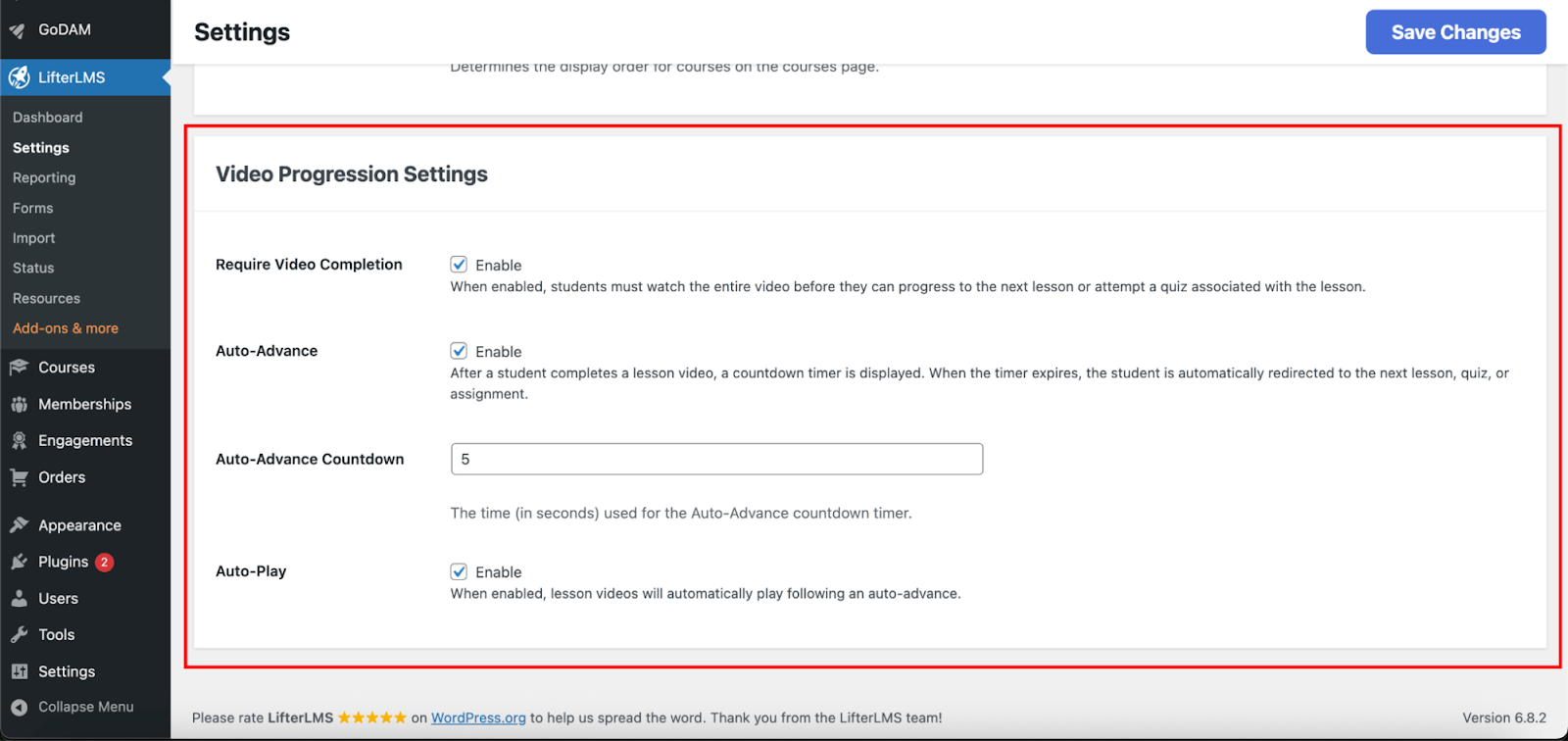
- Click Save Changes to apply your settings.
Now your courses are ready to deliver a professional video learning experience to full progress tracking. You can also monitor student engagement and completion rates for all GoDAM powered videos embedded in your Lifter LMS lessons.
GoDAM Video Integration with Lifter LMS
GoDAM offers a seamless integration with Lifter LMS, giving you the ability to enhance your courses with interactive, high-impact videos.
With these features, GoDAM upgrades Lifter LMS videos into immersive, branded learning experiences that engage, inform, and convert.
Adding GoDAM Videos to Lifter LMS Courses
You can add GoDAM videos to your Lifter LMS courses in two ways:
- Self-Hosted Media: Using the GoDAM Gutenberg Block.
- Embed URL: Paste a GoDAM video link into Lifter LMS’s video embed field.
Method 1: GoDAM Gutenberg Block (Self-Hosted)
For adding to existing lessons:
- Go to Lifter LMS → Courses → Lessons.

- Open the lesson you want to add a video to.
- Add a new block in the editor and search for GoDAM.

- Insert the block into the lesson.
- Choose media from your library or upload a new video.
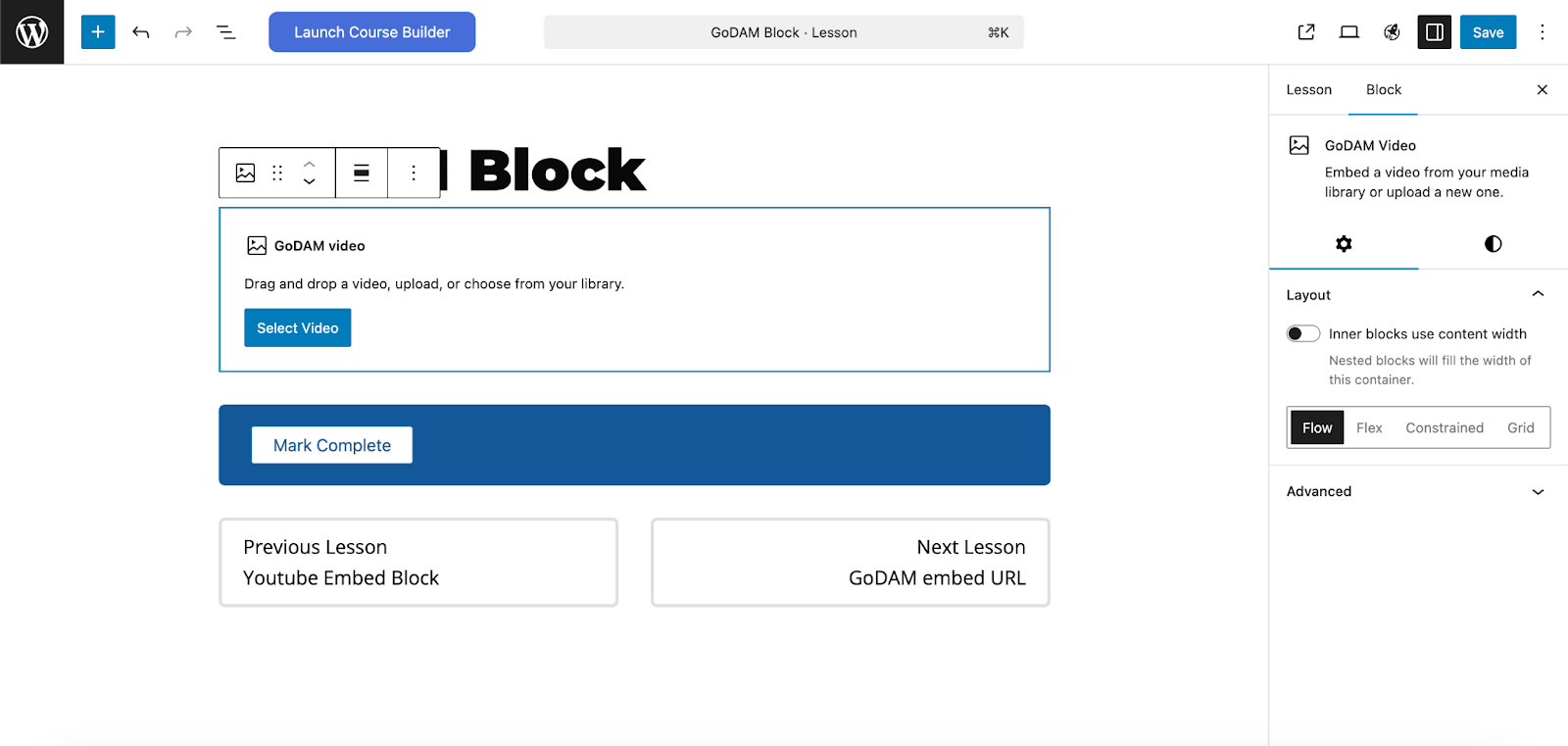
- Your GoDAM block is now added to the lesson.
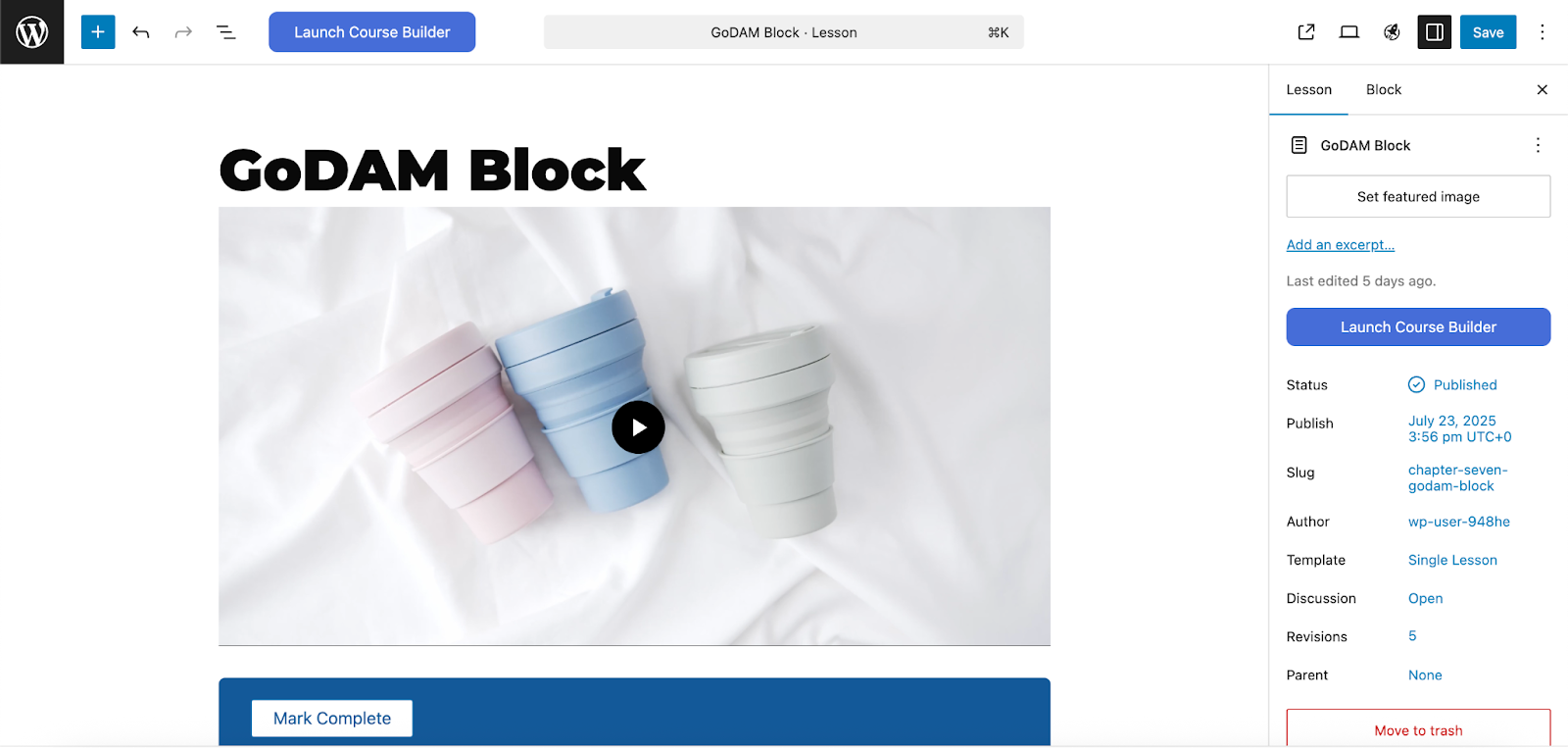
- Configure the player settings, or further customize the video to add layers, CTAs, polls, and more.
Method 2: GoDAM Video Using Embed URL
1. Go to Lifter LMS → Courses.
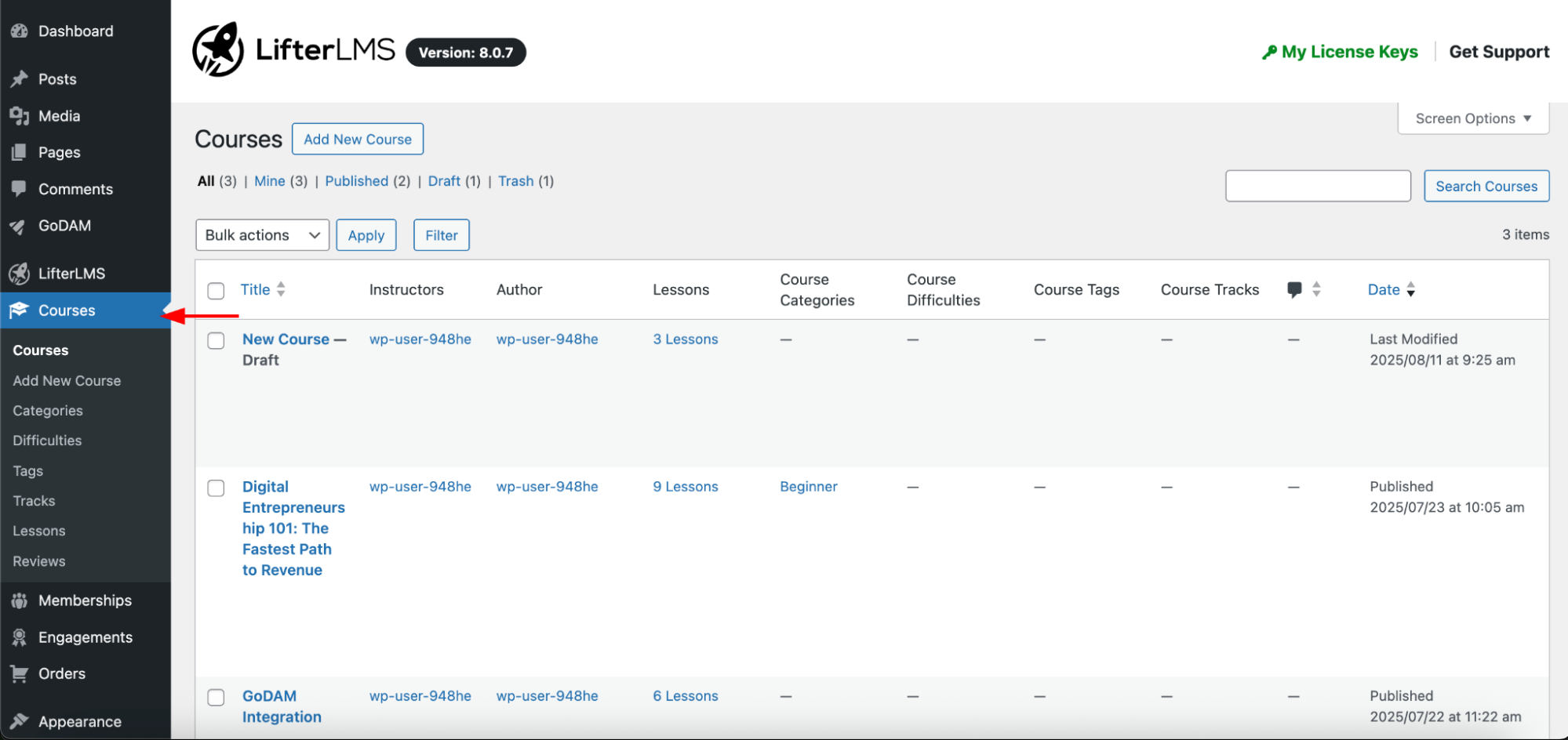
2. Open the Course Builder for the course (you can do this directly from the Courses page or by opening a course and clicking Course Builder)
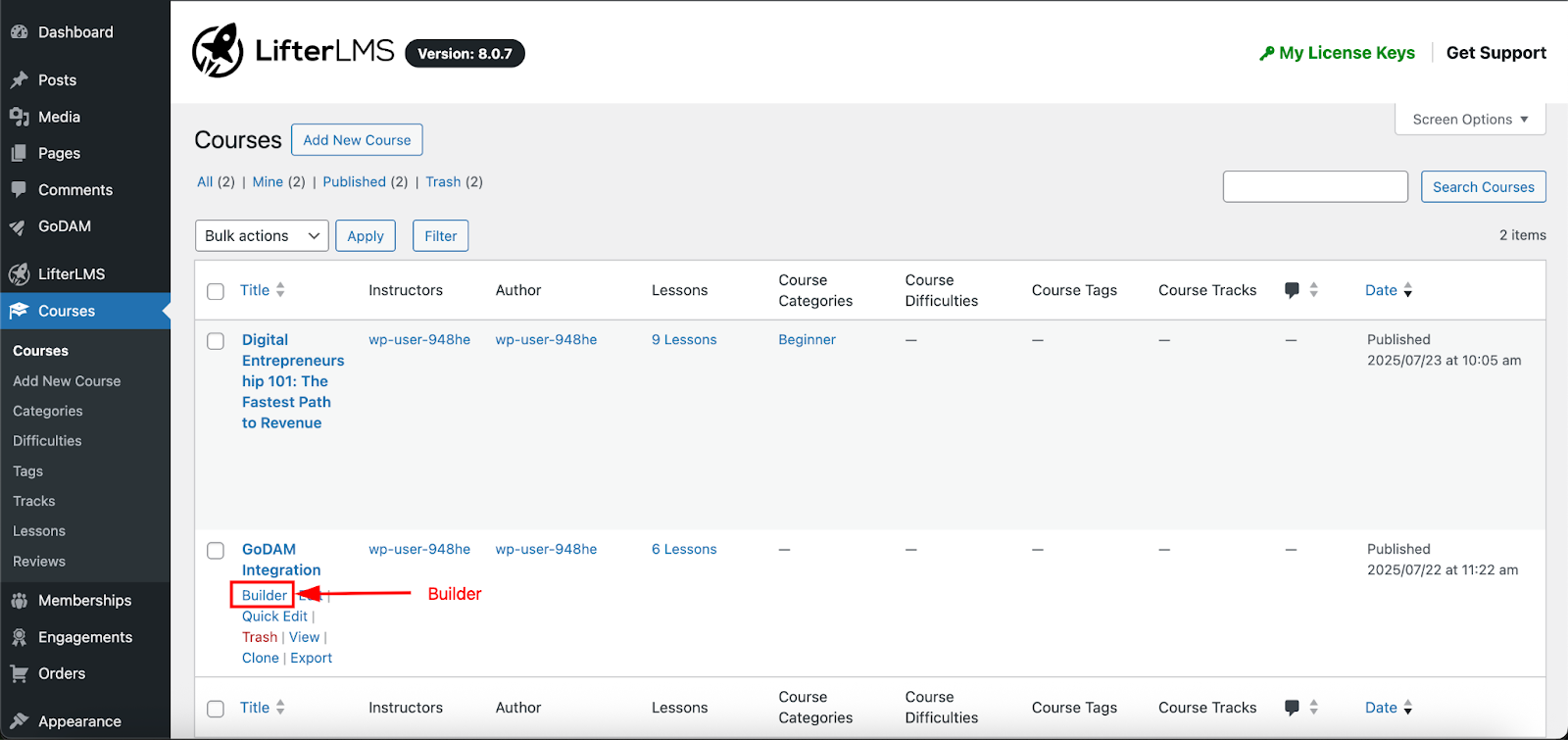

3. Select an existing lesson or create a new one.
4. On the Lesson Details panel (right-hand side), locate the Video Embed URL field.
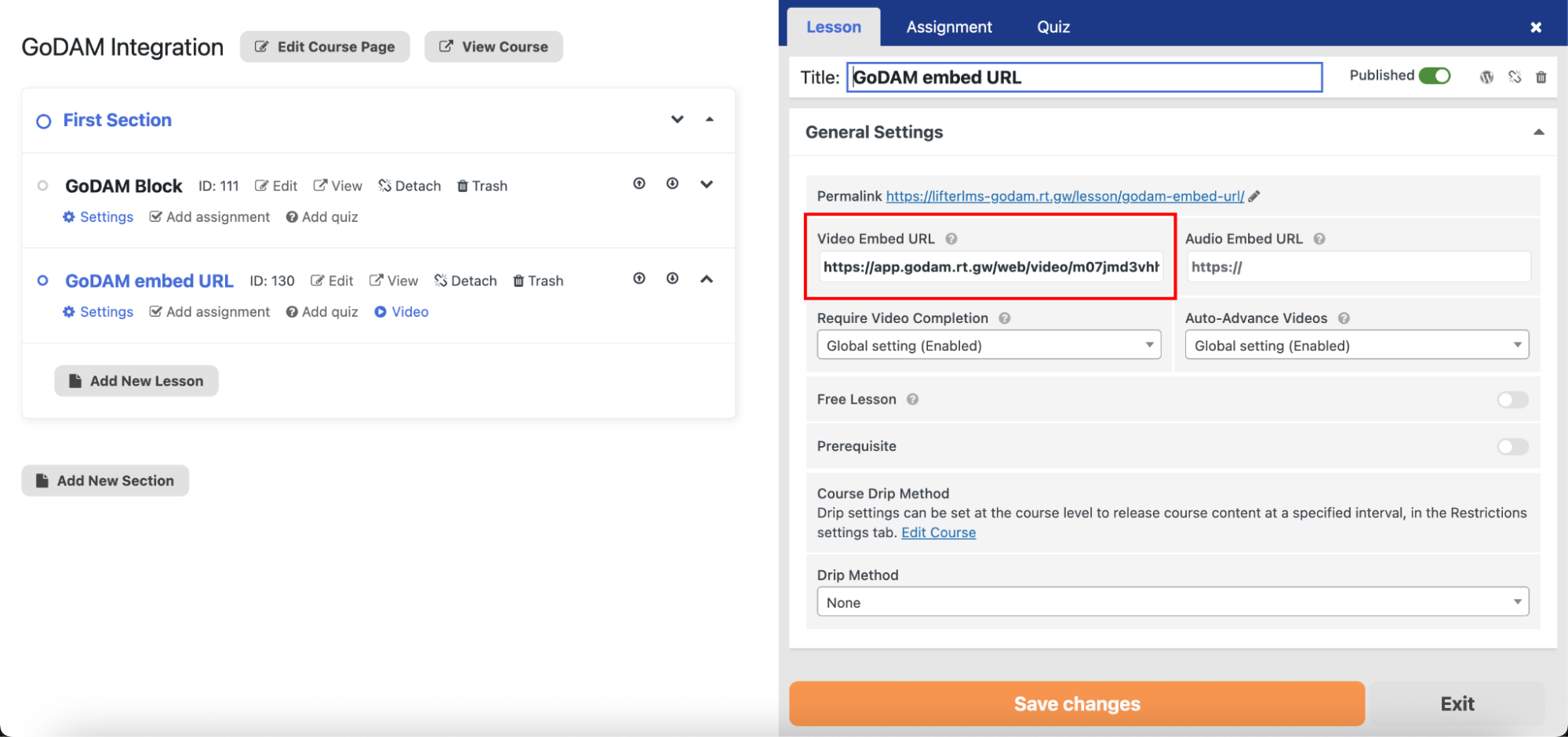
5. Paste your GoDAM video URL here.
6. Click Save Changes.
7. Visit your lesson to view the embedded GoDAM video

Note: The GoDAM plugin must be active to use either the GoDAM block or GoDAM embed method.
Benefits of Using GoDAM Videos in Lessons
Video-based lessons can boost student engagement, enhance retention of information, and simplify the understanding of challenging topics. With GoDAM LifterLMS integration, you can elevate your course videos by incorporating interactive elements and personalized features for a more immersive learning experience.
GoDAM Adds Powerful Features to Your Lifter LMS Videos
With GoDAM, your course videos become interactive learning tools that go beyond simple playback. Here’s what you can do:
- Add Chapters – Break videos into clearly defined sections so learners can quickly find and revisit key moments.
- Add Layers – Insert forms, calls-to-action, resource links, and more to collect information or provide supplemental materials—right inside the video.
- Customize Player & Branding – Personalize the video player’s look and feel to perfectly align with your brand identity.
- Take Polls – Ask questions and gather learner feedback directly within the video to keep engagement high.
- Track Analytics – Use the GoDAM dashboard to monitor video performance, see what content resonates most, and make data-driven improvements.