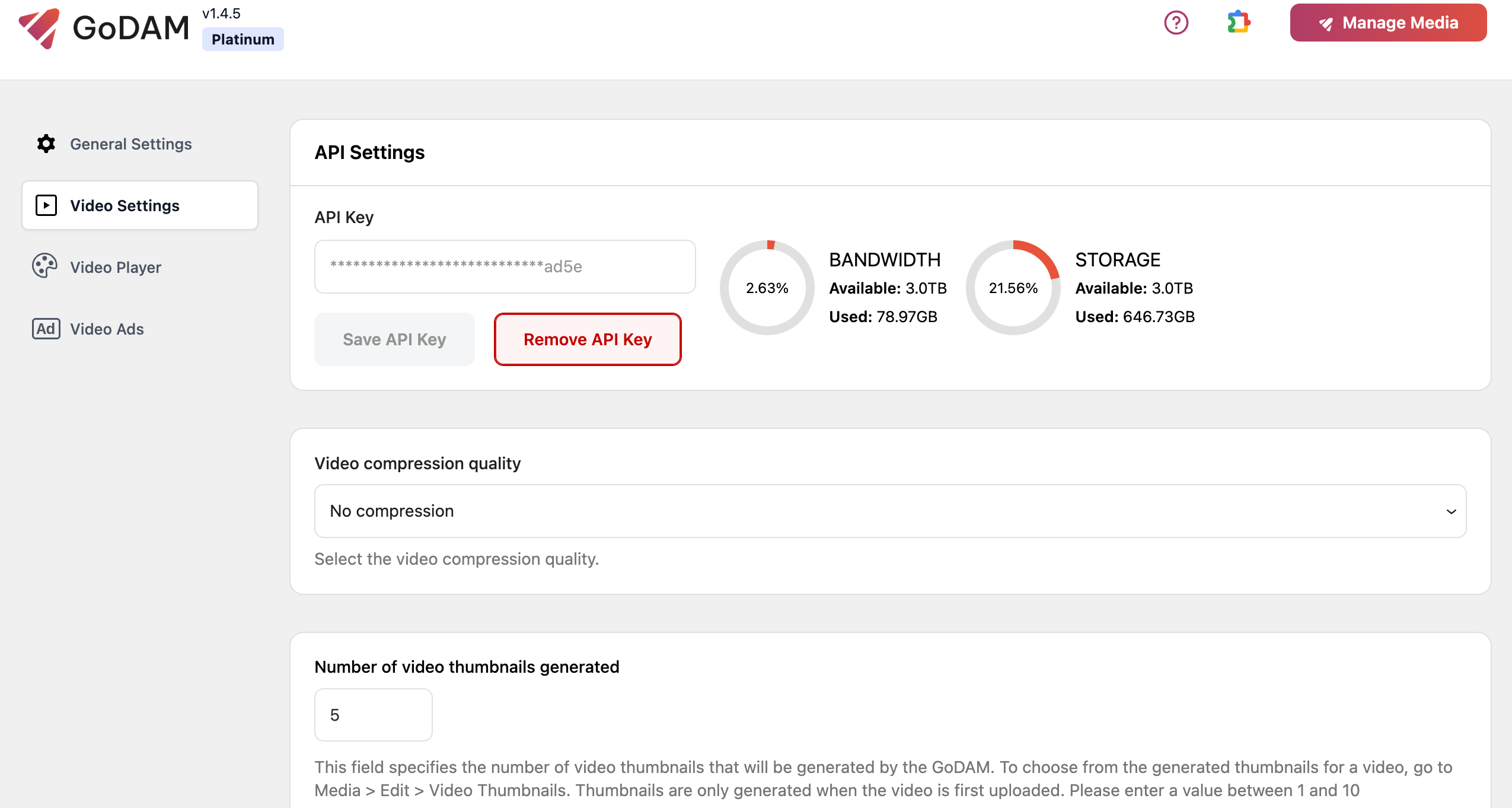
After installing GoDAM, you must enter a unique API key into the plugin’s interface. Transcoding services will remain unavailable until the GoDAM API key is saved.
Activating GoDAM – API Setup Guide
Step-by-Step API Generation
1. Select a subscription plan
- Visit the GoDAM pricing page
- Review available plans:
- Starter
- Bronze
- Silver
- Gold
- Platinum
- Choose the plan that best fits your needs
2. Complete Purchase Process
- Fill out the required details:
- Contact information
- Billing information
- Payment details
- Organization name
- Process payment using supported methods
- Save the order confirmation for reference
3. Access Your Account Dashboard
After successful payment:
- You’ll be automatically redirected to your account dashboard

4. Generate API Key
- In GoDAM Central, visit the billing section
- Your unique API key will appear in a pop-up window
- Copy and save this key securely

Activating Your API key
- Log in to your WordPress admin panel
- Navigate to GoDAM settings
- Locate the API key field under the Video Settings tab
- Paste your generated key
- Click “Save Changes.”
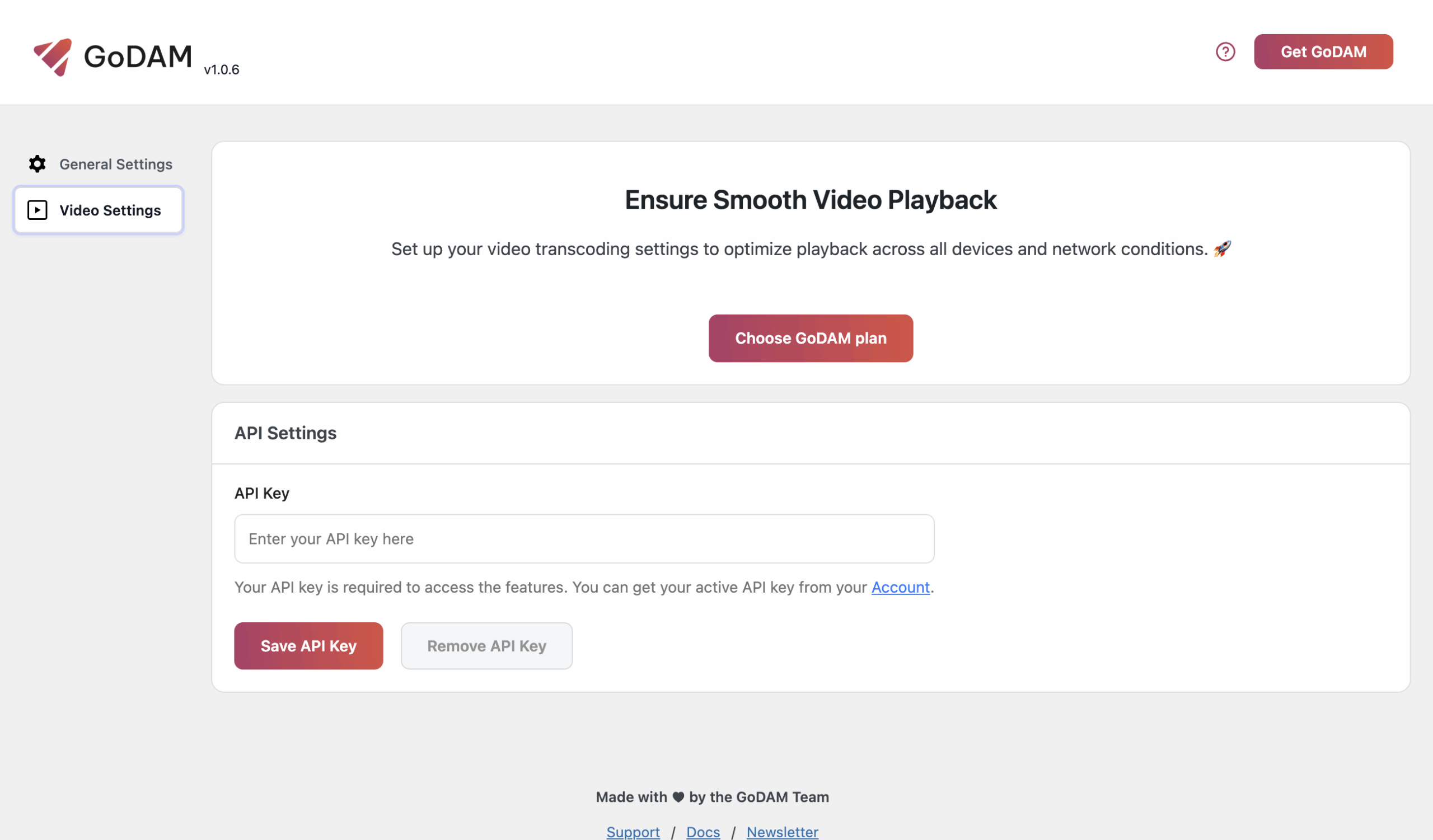
Once you activate your API key in WordPress, all the premium features will automatically unlock and become available.