
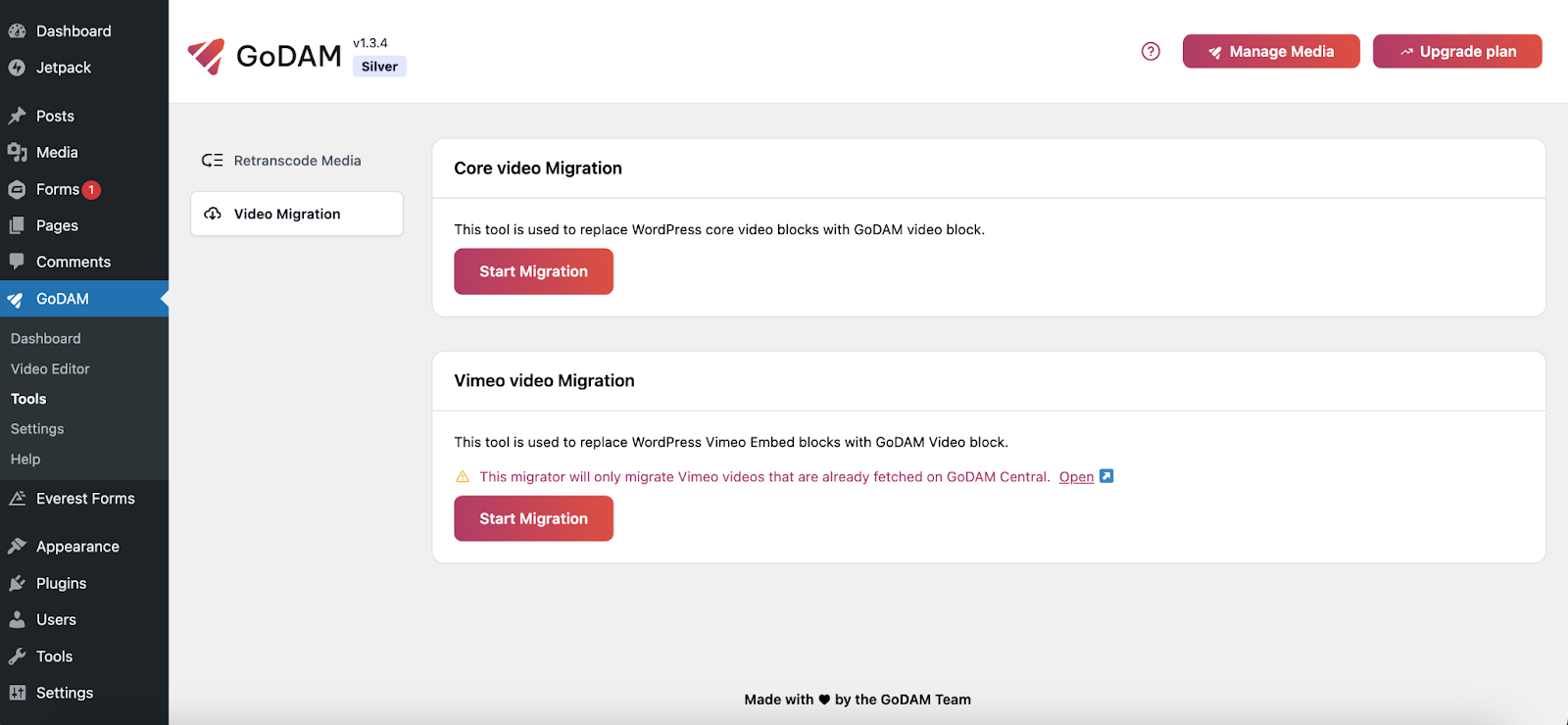
GoDAM provides a Video Migration tool that will allow you to migrate the WordPress core videos and Vimeo videos into GoDAM Video used across your WordPress site.
Requirements
To follow this tutorial, you will need:
- GoDAM Plugin
- GoDMA Central (paid plan is required)
- Vimeo Account (access to the Vimeo account from where videos are to be migrated, only required for Vimeo migration step)
Connect GoDAM API Key
After you subscribe to a plan first, you will need to connect your GoDAM API key to your WordPress site.
Core video migration
The core video migration tool will help you migrate the existing videos that are embedded using the WordPress Video block in the block editor.

Steps to migrate the Video block into the GoDAM block
Step 1: Re transcode all media
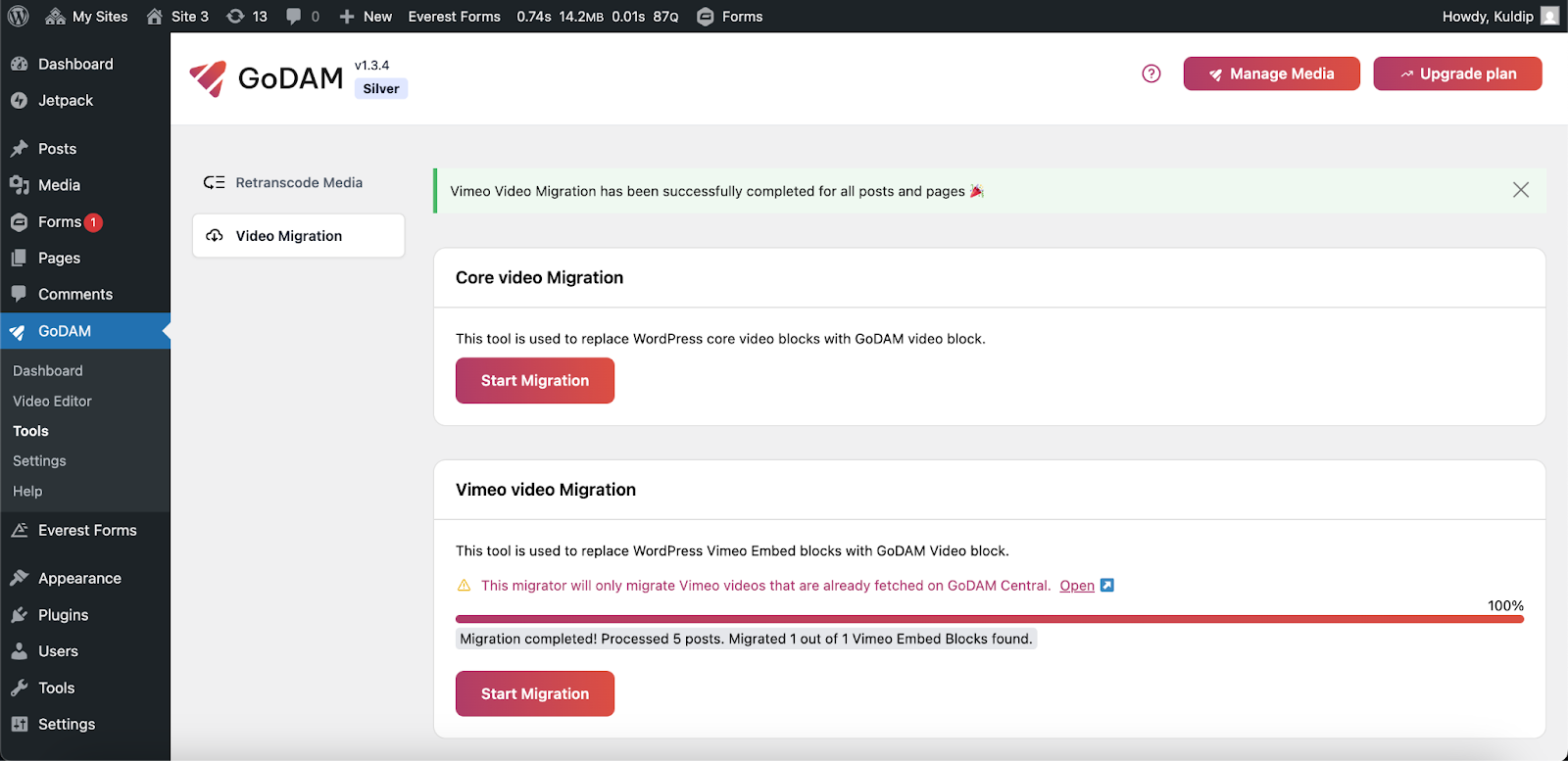
Step 2: Go to GoDAM → Tools, click on the Start Migration button present in the Core video migration section.
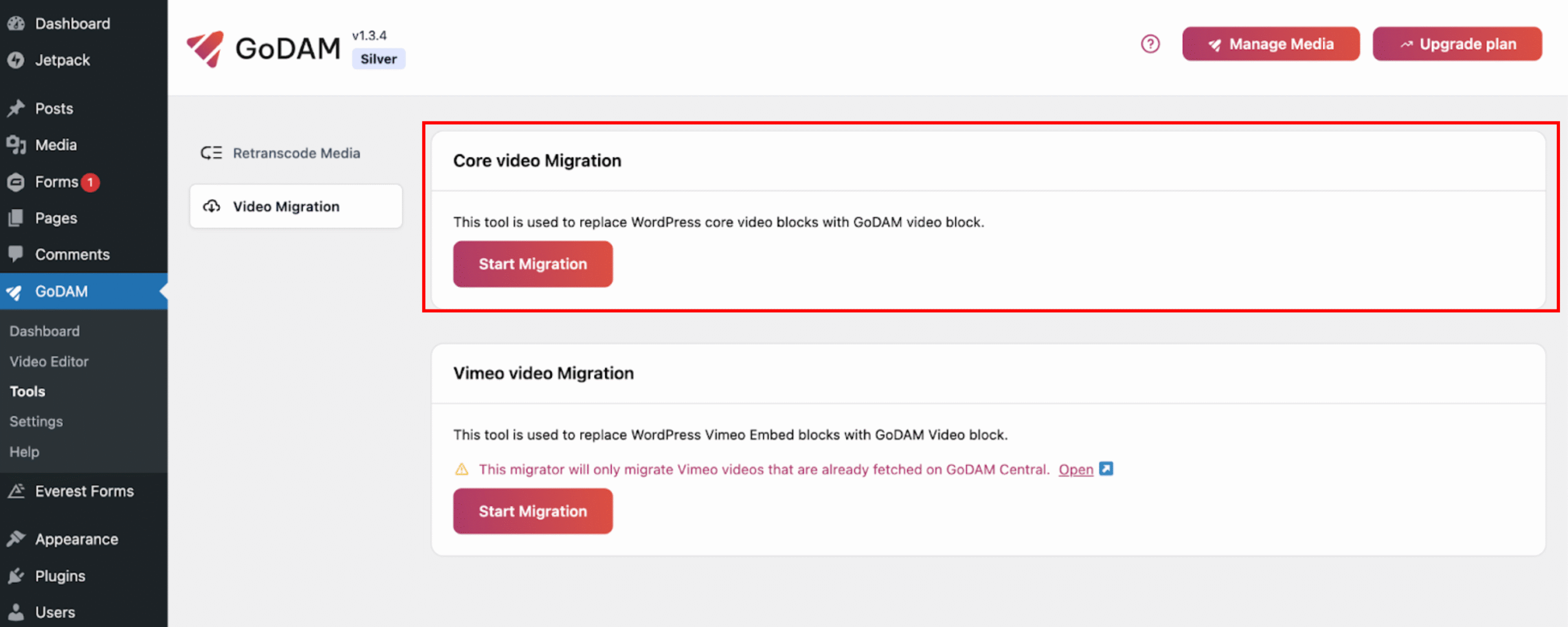
The video migration process will now start in the background and take anywhere from a few seconds to a few minutes, depending on the number of posts, pages present in your site.
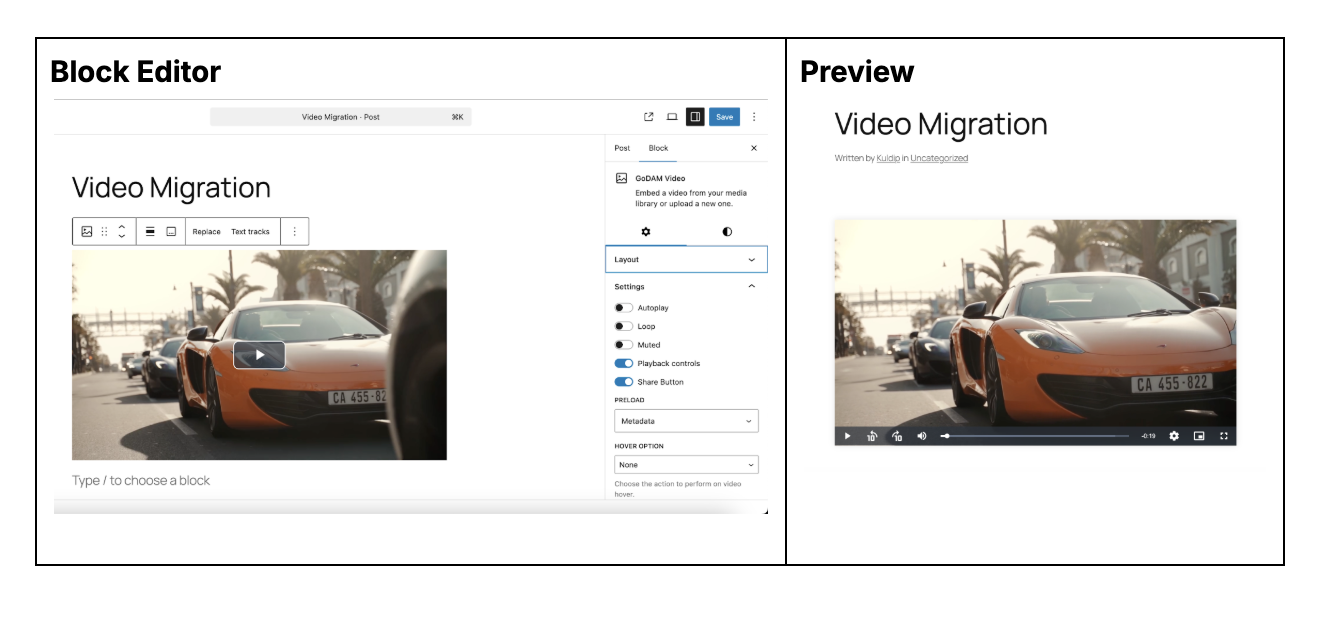
Before Migration
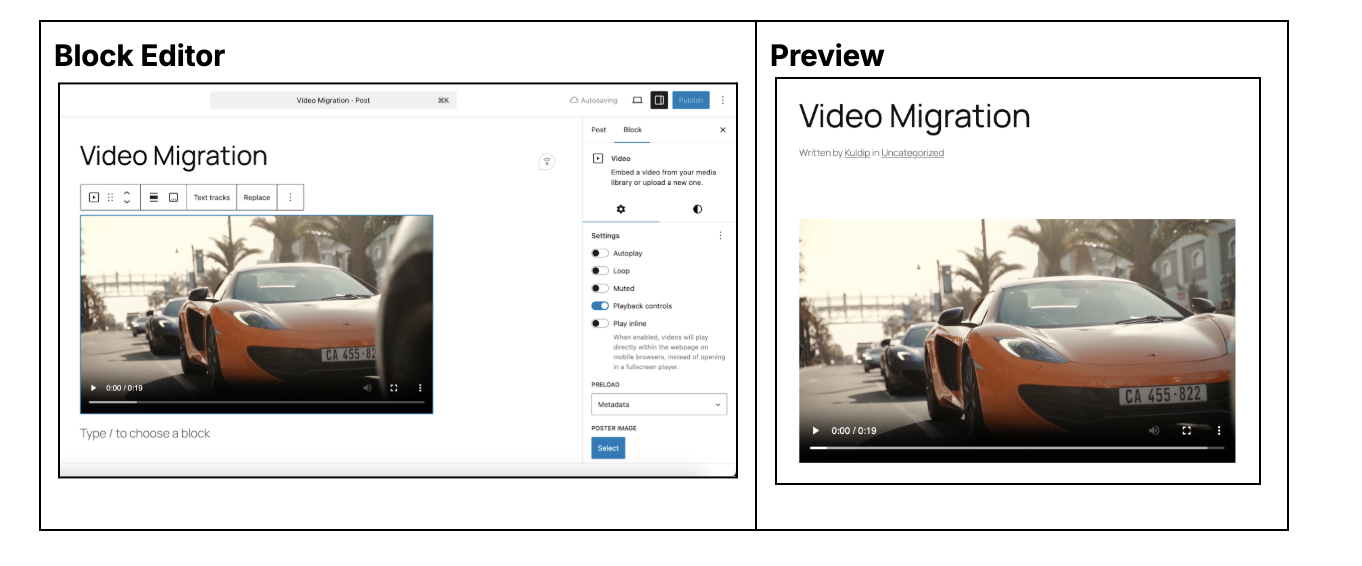
After Migration
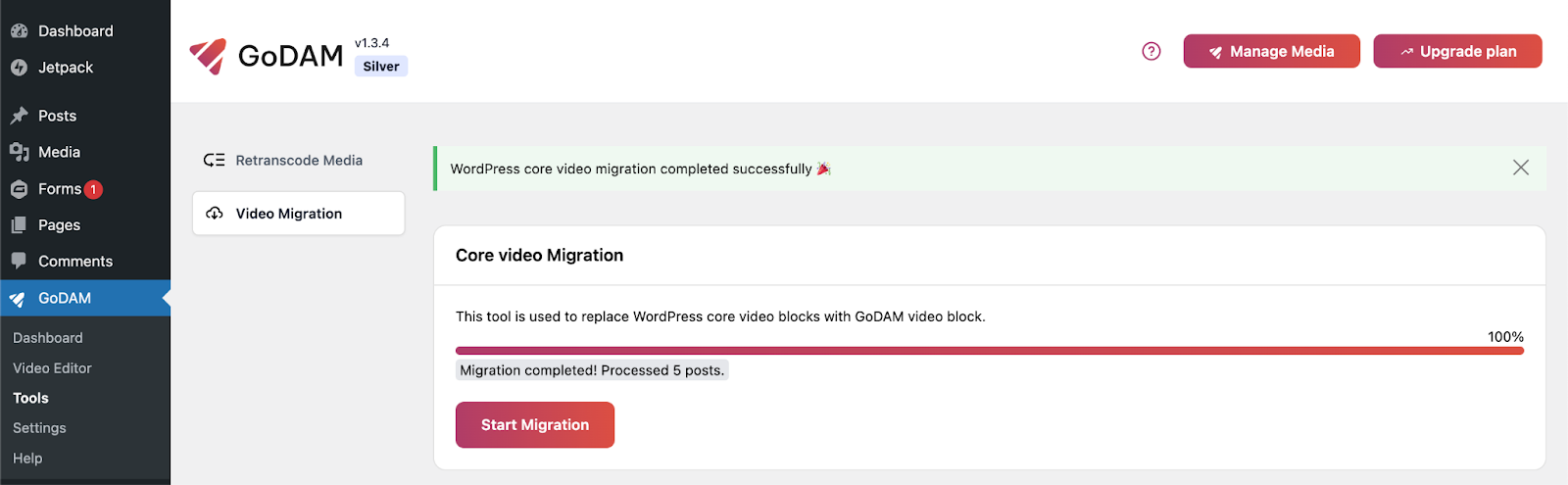
Migration Progress bar
Vimeo Video Migration
GoDAM is a great alternative to Vimeo, and if you are looking to migrate your video from Vimeo to GoDAM, then GoDAM’s Vimeo video migration tool will help you migrate existing Vimeo videos that are embedded using the WordPress Video block in the block editor and replace them with GoDAM Videos.
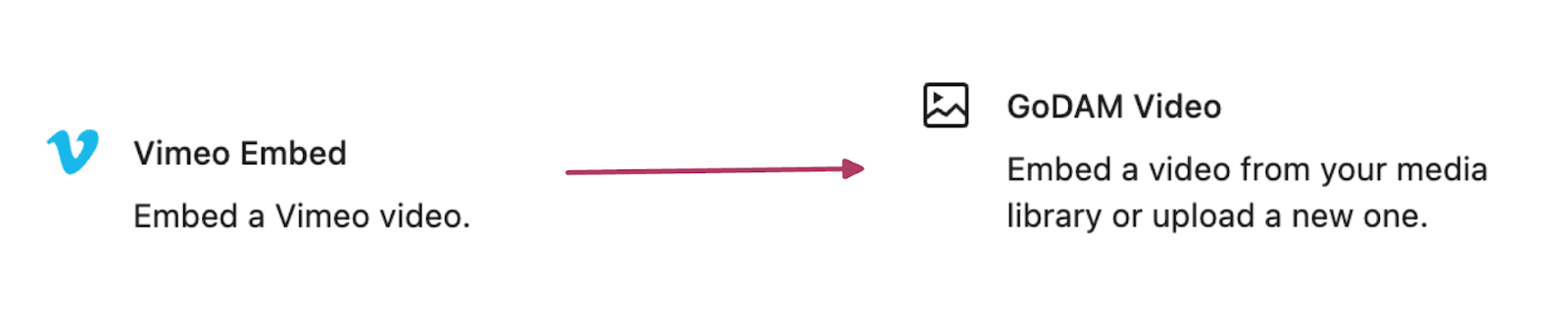
This migration tool will only migrate Vimeo videos that are already fetched on GoDAM Central.
Steps to migrate the Vimeo Video block into the GoDAM block
Step 1: Go to your GoDAM Central dashboard settings using the link: https://app.godam.io/web/settings
Step 2: Connect your Vimeo account after authorizing access.
Step 3: Check if all your videos got fetched.
Connect Vimeo Account with GoDAM Central

Import videos from Vimeo to GoDAM
Step 4: Once videos are successfully imported to GoDAM, we can start migration on the WordPress website. Open your WordPress site, go to GoDAM → Tools, c on the Start Migration button on the Vimeo video migration section.
Start migration once Vimeo videos are imported to GoDAM Central
Before Migration
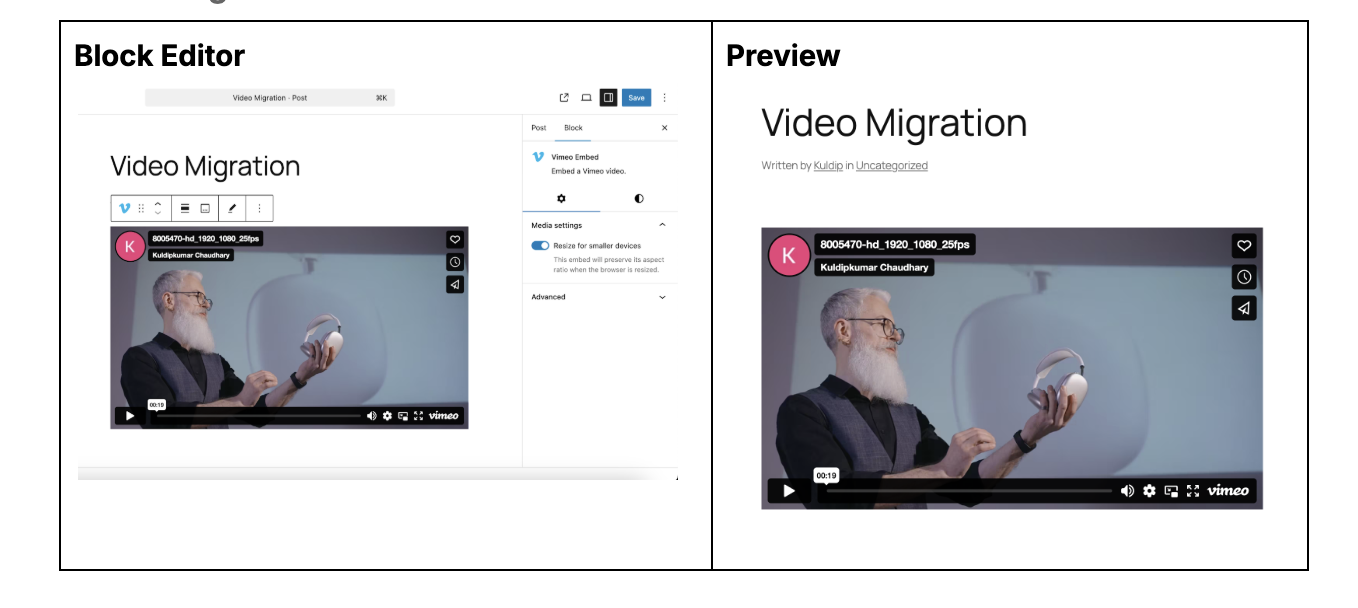
After Migration

If you run into any issues, please contact our support.