
The GoDAM CTA Layer allows you to transform passive video viewing into an interactive, action-driven experience. With this feature, you can easily add customizable call-to-action buttons directly inside your videos, prompting viewers to sign up, visit a link, make a purchase, or take any desired action without leaving the video.
It seamlessly integrates with your video content, ensuring a smooth and engaging experience that keeps viewers focused while increasing conversions. Whether you’re promoting products, collecting leads, or guiding users through a funnel, the GoDAM CTA Layer empowers you to turn every video into a powerful marketing tool.
STEPS:
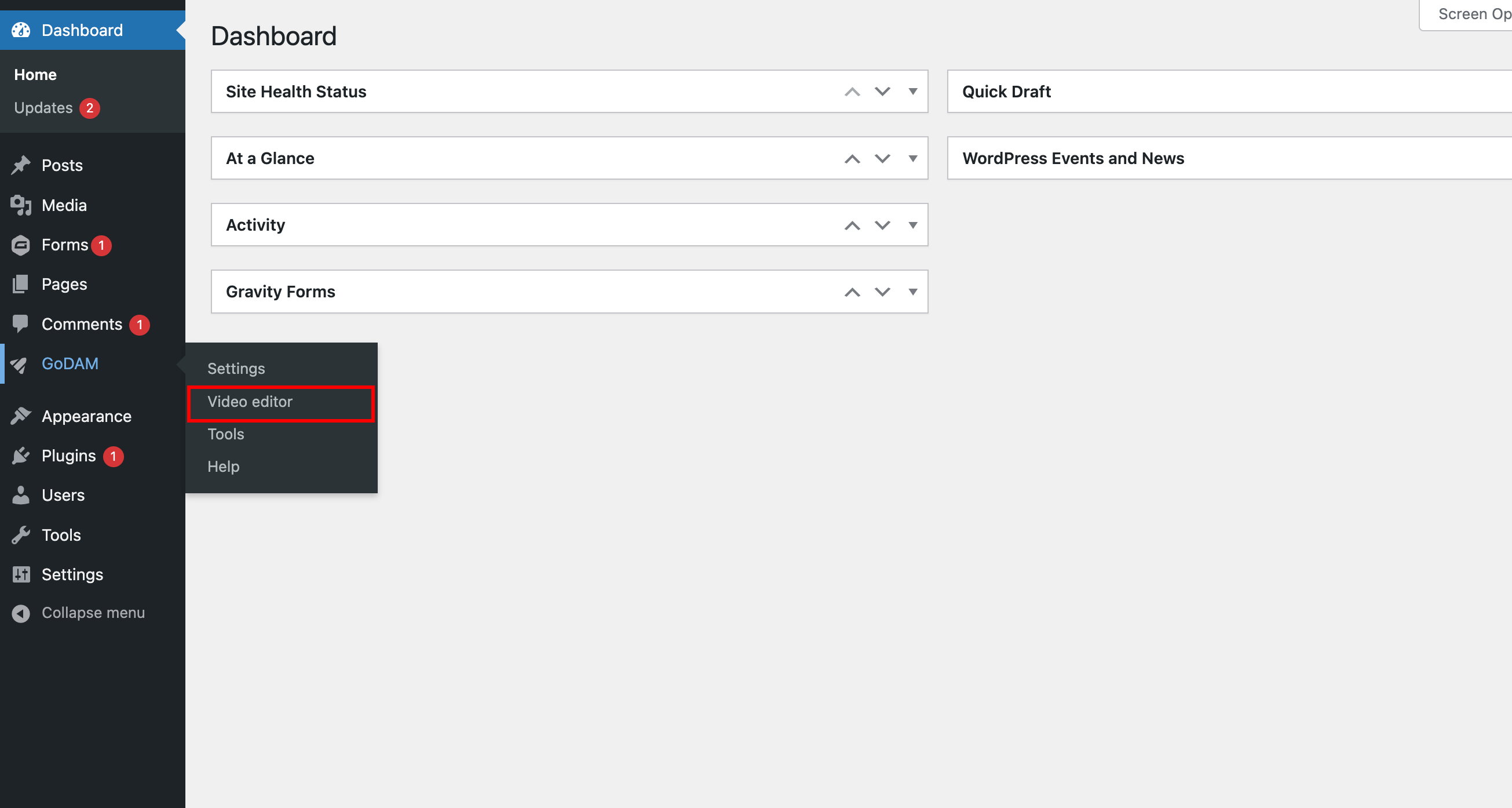
Step 1: Go to Video Editor under GoDAM menu
Step 2: Choose a video

Step 3: Go to the timestamp where you want to add the layer

Step 4: Click on CTA from the popup

Step 5: Select the type of CTA you want to add

Step 6: There are three types of CTAs available:
1. Text CTA: Displays custom text to the user at the specified timestamp in the video.

2. HTML CTA: Renders custom HTML content for the user at a specific timestamp.
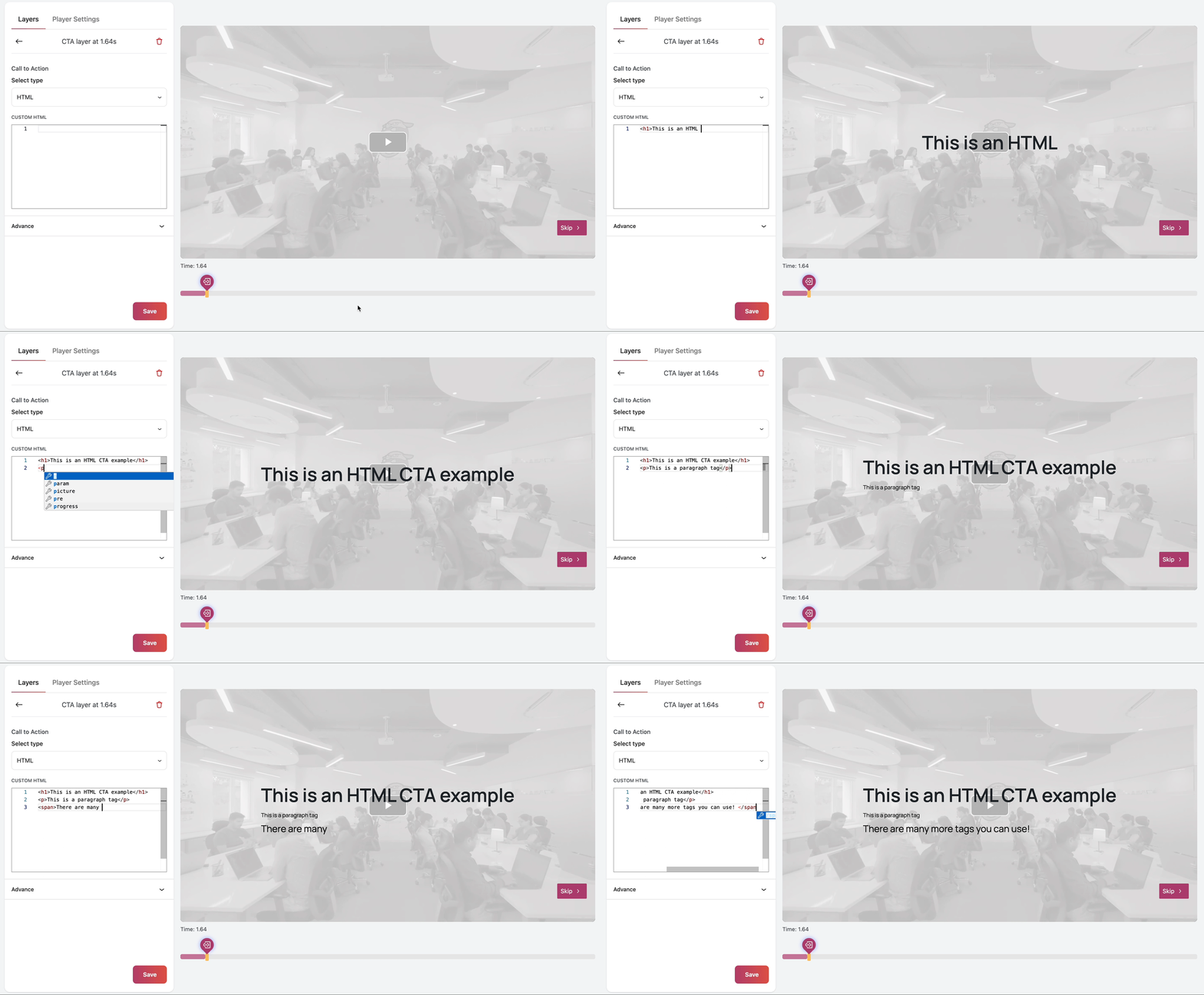
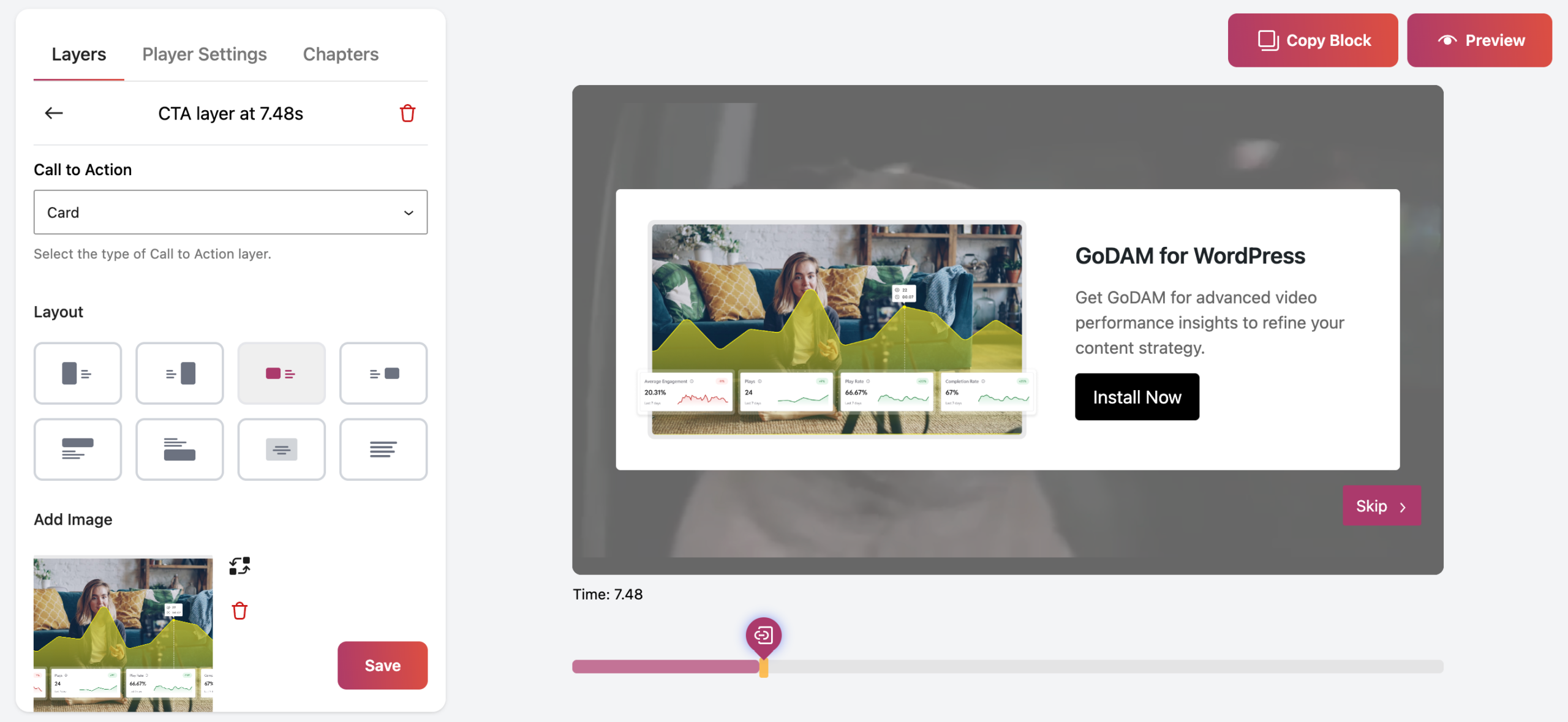
3 Card CTA: Allows you to upload an image, add accompanying text and a description, and include custom text for the CTA button and it can be rendered in 8 different layouts.
With three powerful CTA types, you can seamlessly add in-video prompts and trigger viewer actions at the perfect moment during playback.